ALT AI life tracker

Features

Everything ALT does

Every feature in the Mac beta today, a few ways to use them, and what comes next.

Join the beta

Free while in beta. Mac now, iPhone and iPad in December.

Planning in hours

Day, week, month and year, all in hours.

Every view adds up estimates and time blocks against the hours you really have, minus meetings and busy time.

Help: Time blocks and hours

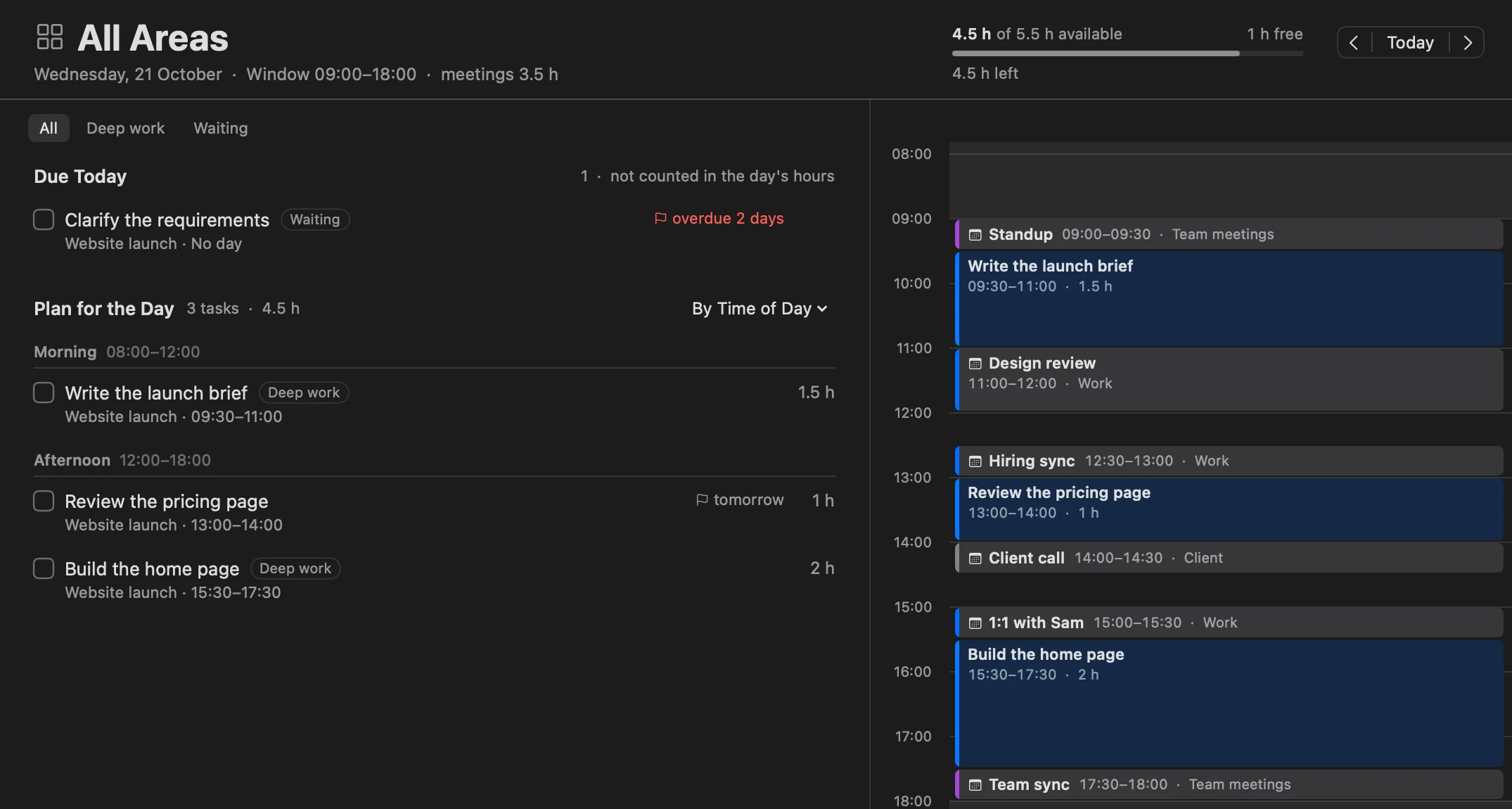
  • Day

    The plan for the day on the left, the timeline on the right. The header shows the hours planned of the hours you have, and what's free or over.

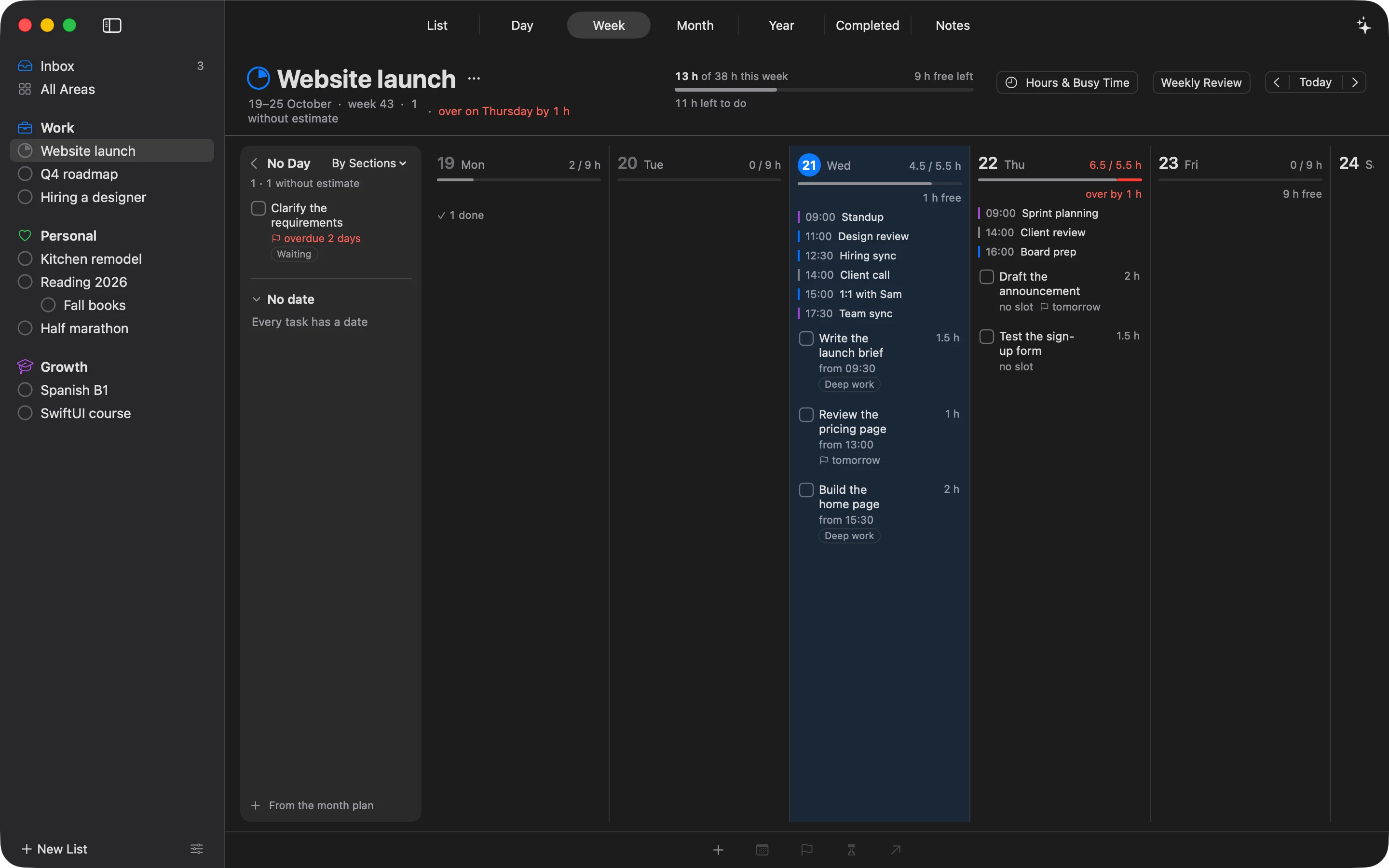
  • Week

    Seven days side by side, each with its hours. A day or a whole week that runs over turns red and says by how much.

  • Your working hours

    Set hours for each weekday, change one date or make it a day off. Until you do, it's Monday to Friday, 08:00-20:00.

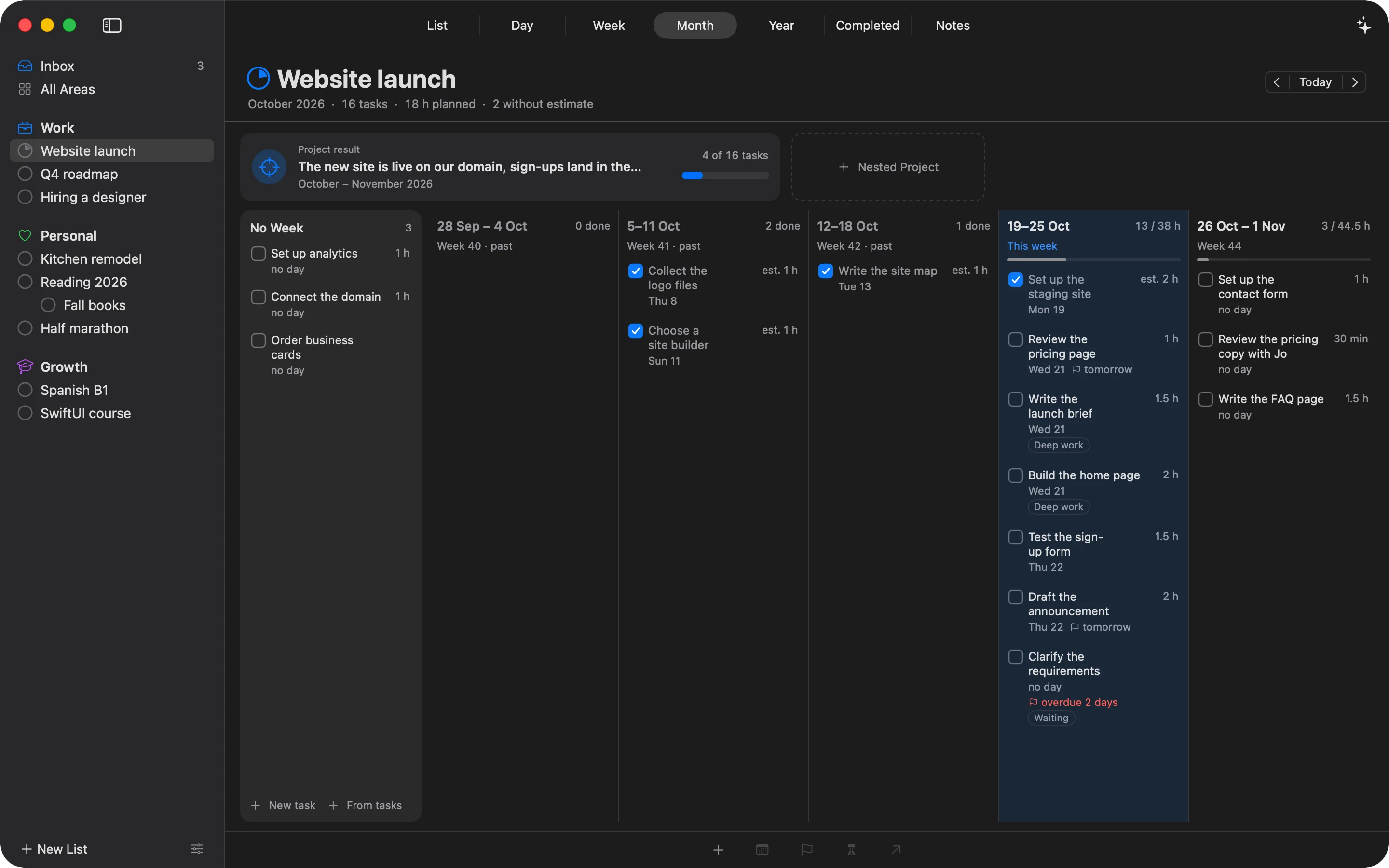
  • Month

    A project's result, its tasks without a week and the weeks of the month with their hours. Give a task a week instead of a day.

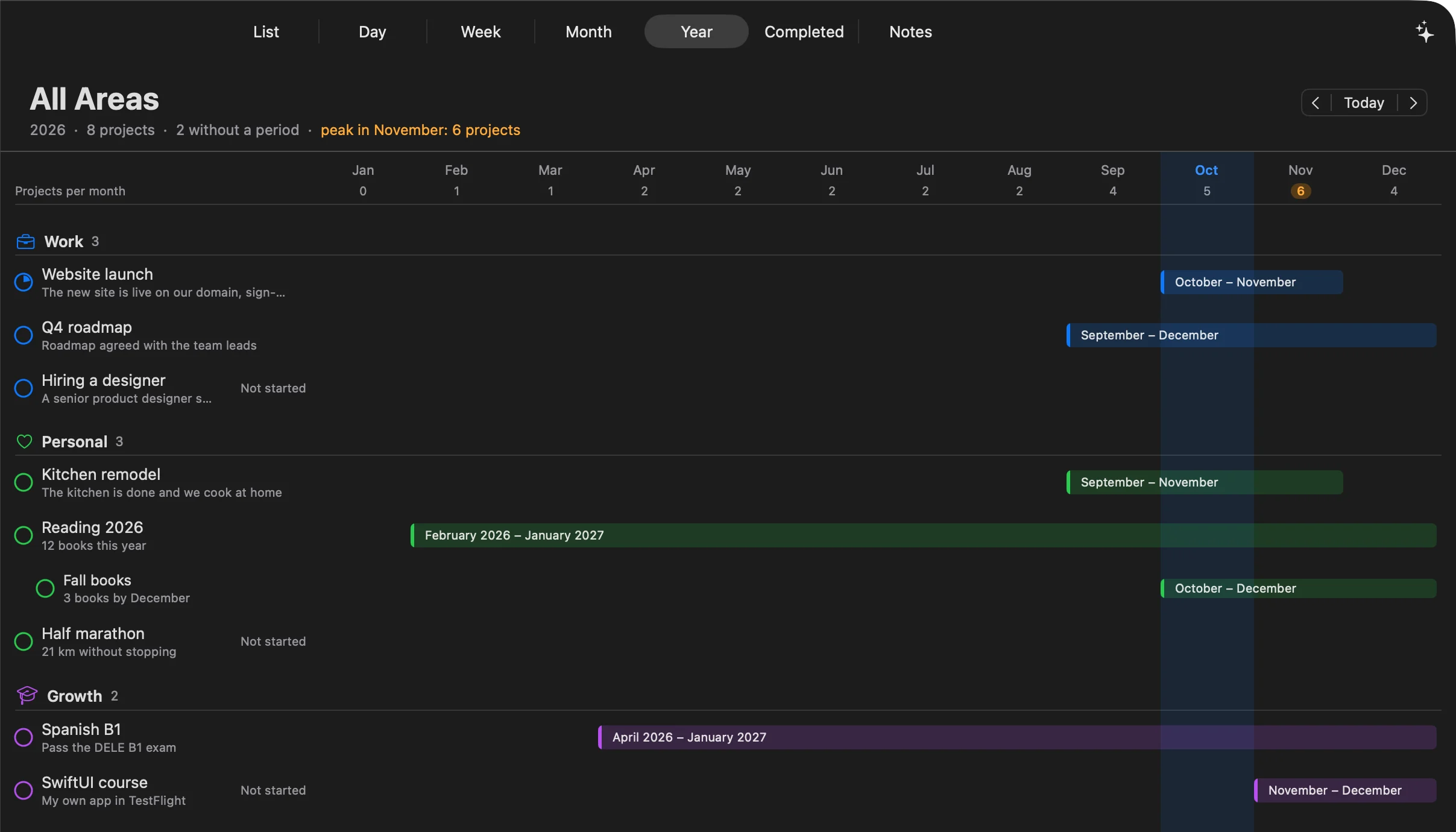
  • Year

    Projects by area with their months, and how many run at once. Pull the edge of a project's bar to change its months.

  • Yesterday moves to today

    Unfinished tasks move to today by themselves. Review sends each one to the week, off the day or to done.

The Week of the project Website launch, dark: Wednesday 4.5 of 5.5 hours, Thursday over by 1 hour.
The Month of the project Website launch, dark: its result, the tasks without a week, and the weeks of October with their hours.
The Year in ALT, dark: projects by area with their months, and the number of projects each month, with a peak of 6 in November.

Tasks and projects

A calm task manager, in the spirit of Things.

Areas, projects and sections in the sidebar. Every task can carry a deadline, an estimate and the time it really took.

Help: Getting started Keyboard shortcuts

  • Areas and projects

    Areas like Work or Health hold your projects. A project can hold another project, two levels deep.

  • Sections

    Split a project into sections with ⇧⌘N, or make a section from the tasks you selected.

  • Inbox

    A task without a project or a day lands in the Inbox. Sort it by hand, or ask the assistant to do it.

  • Someday and no date

    Put a task off with When → Someday, or type "next week" to give it a week. Undated tasks wait under the Week.

  • Deadlines and estimates

    ⇧⌘D sets a deadline, ⇧⌘E an estimate. On the Week and Month, click the gray clock on a card to estimate it.

  • Actual time

    A finished task shows how long its blocks took, next to your estimate: 2.3 h · est. 1 h.

  • Completed

    Done tasks move to Completed right away, once a day or when you press ⇧⌘Y, as in Things.

  • Your own order

    Drag a task and a gap opens where it will land, or use ⌘↑ and ⌘↓. Paste text, and each line becomes a task.

  • Group your way

    Show the List, the Day's plan and the Week's tray by projects, by part of the day, or as one list.

Time blocks

Give a task its time, in as many blocks as it needs.

Drag tasks onto the Day's timeline between your meetings. The task stays one task in its project.

Help: Time blocks and hours About time blocking

The Day in ALT, dark: the plan for the day on the left and the timeline on the right, with tasks in blue blocks between the meetings from the calendar.
  • See the time before you drop

    A dashed block with the task's name and time, like 18:00-20:00 · 2 h, follows the pointer in 15-minute steps.

  • One task, several blocks

    An hour before the 9:00 meeting and two after it. Each block says which part it is, like block 1 of 2.

  • Both edges

    Pull the top edge to change the start, the bottom one to change the end, or type the times in the task.

  • Overlaps, sorted

    When blocks overlap, the timeline shows how many. Click the count to end one block where the next begins.

  • Busy time

    Drag on an empty part of the timeline to mark time that isn't a task. It comes off your hours like a meeting.

  • Parts of the day

    Tasks without a set time sit in Morning, Afternoon and Evening. Drag one into another part of the day.

Calendars and meetings

Your meetings on the same timeline as your tasks.

ALT reads the Calendar app on your Mac, so your iCloud, Google, Exchange and Outlook accounts all show up.

Help: Calendars and meetings

  • Choose what counts as busy

    Pick the calendars that take time out of your hours. All-day, declined and Free events are skipped at first.

  • Move a meeting on your day

    Drag it or pull an edge, and it changes in your calendar too. ⌘Z puts it back.

  • Asks before it bothers people

    A meeting with participants asks before it moves. A repeating one asks: only this one, or this and the following.

  • Locked when it should be

    A meeting someone else organizes, or one from a read-only calendar, shows a lock and says why.

  • Turn a meeting into a task

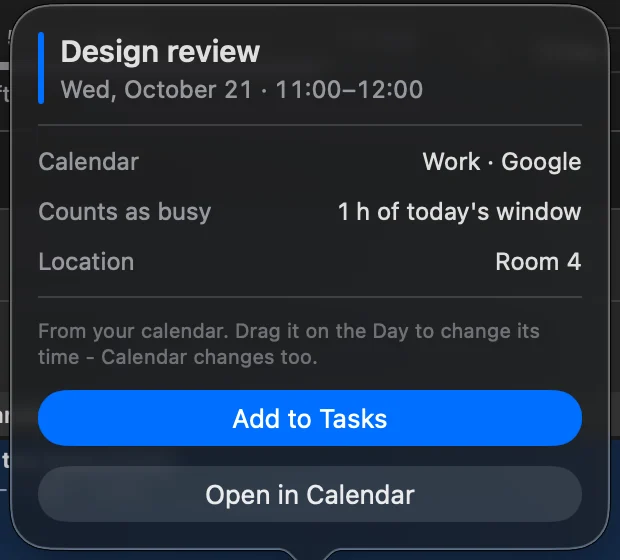
    Add to Tasks puts it in a project. It stays one block, now with a checkbox, and its hour counts once.

  • The task keeps up

    Move, rename or delete the meeting, and its task follows. When the meeting is over, the task is checked off.

A meeting's card in ALT, dark: Design review, 11:00-12:00, from the Work calendar in Google, counts as busy for 1 hour of today's window, with the buttons Add to Tasks and Open in Calendar.

ALT changes a meeting only when you move it. Your task blocks stay in ALT and aren't written to your calendar.

The assistant

An assistant that plans inside your hours.

Open the chat with ⌘J, type or dictate, and every change comes as a card you apply or reject.

Help: The assistant and your AI key

  • Tasks that fit

    New tasks get an estimate and a time between your meetings, inside your working hours.

  • A card before anything changes

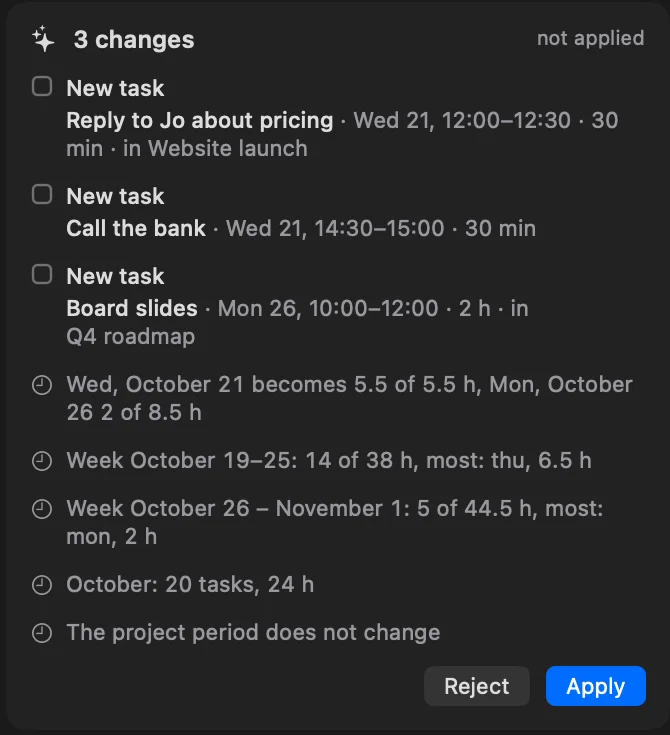
    It shows what changes and what that does to the hours of the days and the week. Apply or Reject.

  • Undo, even later

    Undo Applied Changes in the chat, or any batch from the last 7 days in Change History.

  • Changes almost anything

    Tasks, working hours, days off, busy time, areas, projects, sections and notes.

  • Ask it anything

    Advice or a translation, too. Changes to your plan still come as a card.

  • Searches the web

    With an Anthropic key, it searches the web and puts its sources right after the facts.

  • Dictation on your Mac

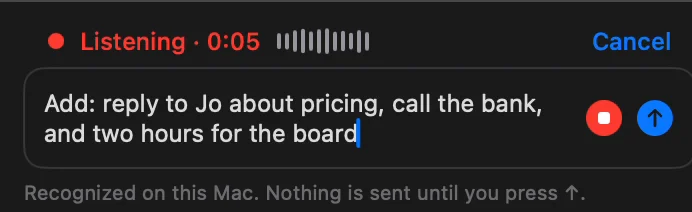
    Speech is recognized on the device, and nothing is sent until you press send.

  • Your own key

    Anthropic, OpenAI or OpenRouter. The key stays in your keychain, and requests go straight to that service.

The chat's field while dictating, dark: Listening 0:05, and the request appearing as it is said: add a reply to Jo about pricing, a call to the bank and two hours for the board slides.
A card with three new tasks and their times, what they do to the day and the weeks, and the Reject and Apply buttons, dark.

Claude Code and Codex

Your plan, open to Claude Code and Codex.

ALT runs a local MCP server on your Mac. Connect once, and they read and change your plan and notes while you work.

Help: Claude Code and Codex The MCP server and its tools

  • Connect in three steps

    Switch on the card in Settings → AI, copy the command and run it once in Terminal.

  • They read your plan

    A day, a week, a month or the year, with tasks, projects, areas, estimates, deadlines and notes.

  • They change it

    With Change on, they create and edit tasks, projects, areas, sections and notes.

  • Big moves wait for you

    Several changes at once, time slots, plans for a week or a month and every deletion wait for your Apply.

  • You set the scope

    Each one sees all areas, one area or one project, and only reads until you allow changes.

  • See what they did

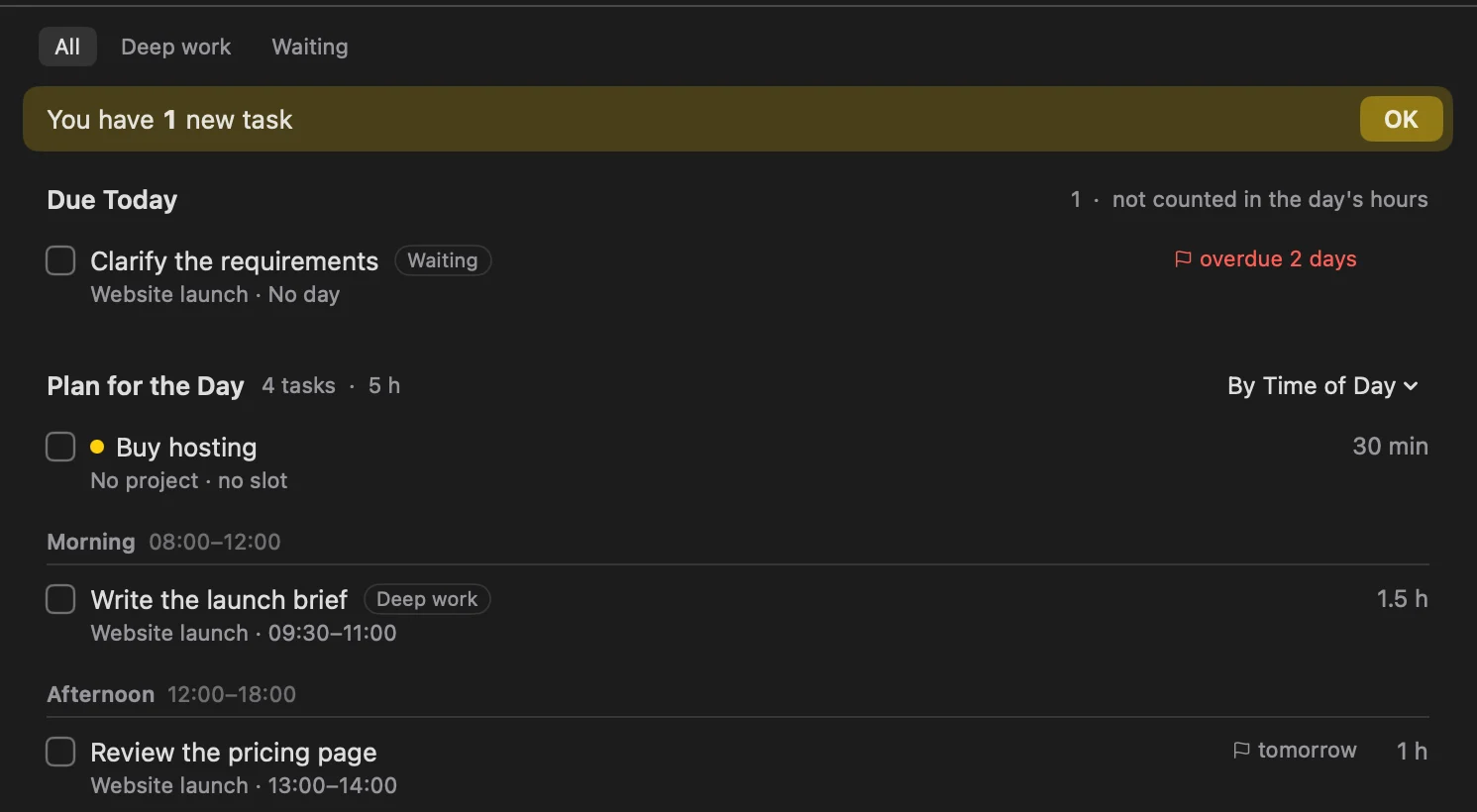
    New tasks get a dot, each change shows in the chat with who made it, and any batch can be undone.

ALT after Claude Code added a task, dark: a You have 1 new task banner with OK, and Buy hosting marked with a dot in the plan for the day.

Notes

An outline for every project and area.

Notes live in ALT next to your tasks. Write them as in Workflowy and take them out as Markdown. Notes are on the Mac for now.

Help: Notes

  • Next to the work

    Open a project or an area and press ⌘8. An area shows its own notes and its projects' notes.

  • An outline

    Return makes the next item, Tab nests it, ⌘↓ and ⌘↑ unfold and fold it.

  • Markdown as you type

    - [ ] makes a checklist, # a heading, [[Note]] a link to another note.

  • Photos and links

    A photo shows under its item, and a web address becomes a link you can click.

  • Export to Markdown

    File → Export Notes to Markdown... writes every note as an .md file, in folders by area and project.

  • The assistant reads them

    The chat, Claude Code and Codex read, create and rewrite notes. Show in note previews the chat's changes.

Native and keyboard

A Mac app, with the keys you already know.

Built in SwiftUI. Screens switch in 0.12 s and typing takes 16 ms a letter, measured in our tests on a plan with 550 tasks.

Help: Keyboard shortcuts

  • Quick Find

    Press ⌘F or just start typing: tasks, projects, areas, sections and views. Type "today" for today's Day.

  • The Things shortcuts

    ⌘K completes, ⌘S sets When, ⌘T moves to today, ⇧⌘M moves to a project, ⌃] shifts a day.

  • Many tasks at once

    Select with ⇧↑↓, ⌘A or ⌘-click. Every key acts on all of them, and one ⌘Z undoes it.

  • Right-click anything

    Tasks, blocks, meetings, projects, areas and sections each have their own menu.

  • Feel it land

    A Force Touch trackpad gives a light tap when a task lands, when you check it, and at each quarter hour as a block moves.

  • Light and dark

    Follows your Mac's light or dark mode. The interface is in English and Russian.

Privacy

Your plan stays on your Mac.

Here is what leaves your Mac, and when.

Help: Your data and privacy Privacy Policy

  • On your Mac

    Tasks, projects, notes and hours live in a database on your Mac. We don't have a copy.

  • No tracking

    The app has no analytics or tracking code.

  • Only when you ask

    The chat sends data only when you send a message, straight to the service whose key you use, not through our server.

  • Dictation stays local

    Speech is recognized on your Mac. Without a speech model, ALT asks you to download one instead of using the cloud.

  • Scoped access

    The MCP server answers only apps on this Mac. Claude Code and Codex send what they read to Anthropic and OpenAI, so you can limit them to one area or one project.

  • Calendars, on your terms

    ALT changes a meeting only when you move it yourself. Take access back in System Settings any time.

Use cases

What a week with ALT looks like.

Short stories built only on what works in the Mac beta today.

A manager with a day of meetings

Find the hour that's really free

Meetings from Google and Outlook land on the Day, and the header shows what's left. Drag the report into the gap; move the 15:00 sync to make room, and it moves in Calendar too.

A day that fits, planned in one window.

Anyone with a full Inbox

Sort the Inbox in one message

Say "Sort my inbox." One card gives every task a project and a day. Check it and tap Apply.

An empty Inbox, and nothing changed without your say.

A founder launching a site

A two-month launch, week by week

Give the project October and November on the Year. On the Month, put each task into a week, then let the Week show which day has room.

A crowded November shows up in September.

Someone with a client call

Prepare for a meeting

Click the meeting and choose Add to Tasks. It goes to the client's project and stays one block on the Day. Keep the agenda in the project's notes.

If the call moves, the task moves. When it ends, it's checked off.

A developer in the terminal

Plan the week from Claude Code

Ask Claude Code to plan the week's work. The plan comes to ALT as a proposal that shows what it does to your hours.

Tap Apply, and the new tasks get a dot. One Undo takes them back.

Anyone planning on Monday

Catch Thursday's overload early

The Week shows Thursday at 6.5 of 5.5 hours, in red. Ask the chat "Thursday is overloaded, lighten it" and check the card.

Thursday fits before it starts.

Coming

What's next.

On our roadmap, not in the app yet. Beta testers hear first.

Changelog

Next on the Mac Coming

  • Area blocksSeveral tasks of an area stacked in one block on the Day.
  • Task blocks in your calendarBlocks written to Apple's Calendar app.
  • Quick entry from any appOne shortcut over whatever you're doing.
  • Tasks with a linkBack to the page, email or file you had open.
  • Meetings that become tasksOn their own, without Add to Tasks.
  • Edit tasks on the Week, Month and YearRight where the card is.
  • More for notesSearch, backlinks, a note for the day and "/" to insert things.

With iPhone and iPad Coming

  • iPhone and iPad appsJoining the beta in December.
  • Sync through our serverEncrypted in transit and on the server.
  • Weekly review on iPhone and iPadLook back at the week from your phone.

Later Coming

  • An assistant without your own keyNo AI account needed.
  • RemindersBefore a block starts.
  • Repeating tasksOn a schedule you set.
  • Tasks from a screenshotFrom a photo or the Share menu.
  • An assistant that remembersYour preferences, and suggestions before the day slips.
  • ImportsFrom Things, CSV, Reminders, Todoist and TickTick.
  • A timer and time reportsPlanned against actual, and where the time goes.
  • More from the chatCalendar events, tasks sent to Things, email drafts.
  • TrashBring back what you deleted, as in Things.
  • Shared projectsInvite a colleague by link.
  • Claude without your Mac onReach your plan when the Mac is off.
  • Apple Watch appAfter iPhone and iPad.
The ALT app icon

Try it on your Mac.

The beta is free. We let testers in by small groups, in the order they sign up.

Join the beta